

Description
Download MacSonik Yahoo Mail Backup Tool – Secure Yahoo Mail Backup, Migration & Export
Overview – Why MacSonik Yahoo Mail Backup Tool Is a Must‑Have for Yahoo Users
MacSonik Yahoo Mail Backup Tool is a dedicated desktop utility that lets Yahoo Mail users protect, archive, and migrate their e‑mail data with confidence. Developed by the seasoned team at MacSonik, the software offers a straightforward way to create scheduled backups, export messages to other services, and keep a local copy of important correspondence. Whether you need a one‑time archive before switching to a new provider, or you run a small business that must retain email for compliance, this tool covers the essential bases. The interface, while functional, follows a classic Windows‑style layout that may feel a bit dated compared to modern cloud‑first solutions, but its reliability and feature depth compensate for the visual simplicity. After a 14‑day free trial, users can choose from several licensing options ranging from a single‑user license to multi‑device bundles, making it flexible for both personal and professional environments. In short, if you rely on Yahoo Mail for daily communication and want a secure, offline backup strategy, MacSonik Yahoo Mail Backup Tool provides the core capabilities you need without a steep learning curve.
Key Features – What Sets This Backup Tool Apart
- Scheduled Automatic Backups: Configure daily, weekly, or monthly backup cycles to ensure new messages are captured without manual intervention.
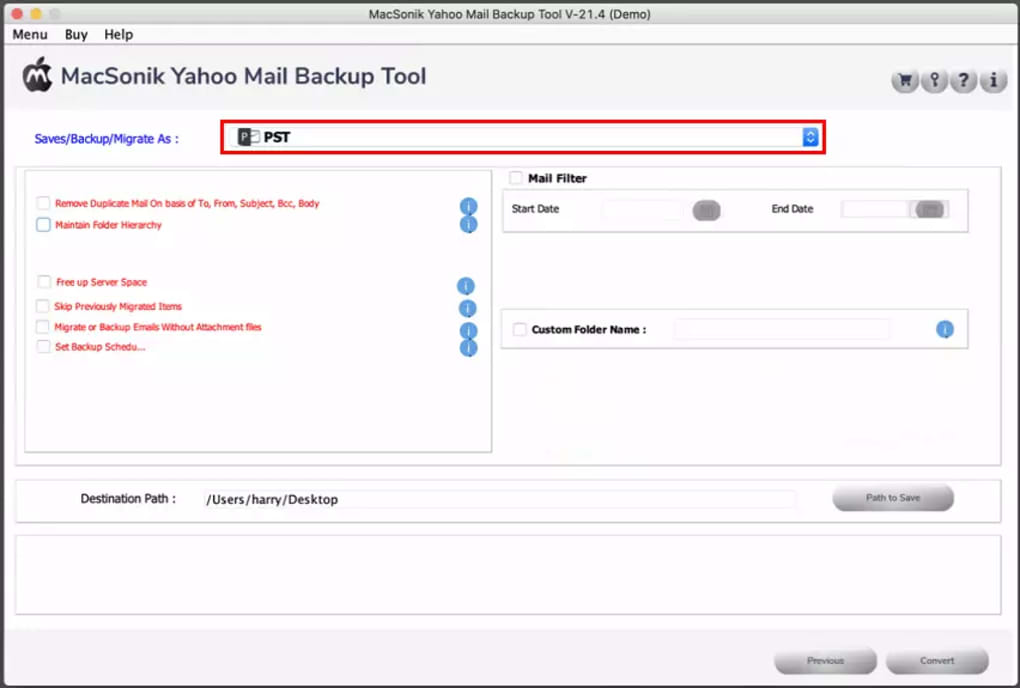
- Multiple Export Options: Save emails as .eml, .pst, or .mbox files, facilitating migration to Gmail, Outlook, or other mail services.
- Selective Folder Backup: Choose specific Yahoo Mail folders (Inbox, Sent, Custom Labels) to back up, reducing storage overhead.
- Duplicate Detection & Filtering: Built‑in algorithms prevent redundant copies and allow filtering by date, sender, or keyword.
- Secure Local Storage: All backups are encrypted on the user’s hard drive, protecting sensitive data from unauthorized access.
- Migration Assistant: One‑click migration to Office 365, Google Workspace, or any IMAP‑compatible server.
- Cross‑Platform Compatibility: Runs on Windows 10/11 and macOS 10.14+; future updates plan native support for Linux.
- Comprehensive Logging: Detailed logs track each backup session, helping troubleshoot issues and verify successful completions.
Installation, Setup & Daily Usage – A Step‑by‑Step Guide
Getting started with MacSonik Yahoo Mail Backup Tool is intentionally simple. Follow these steps to have your first backup up and running within minutes:
1. Download & Install
- Visit the official MacSonik website and click the Download button for your operating system (Windows or macOS).
- Run the installer. On Windows, accept the EULA and choose the default installation folder; on macOS, drag the app to your Applications folder.
- Launch the program; the first‑time wizard will prompt you to create a free trial account.
2. Add Your Yahoo Mail Account
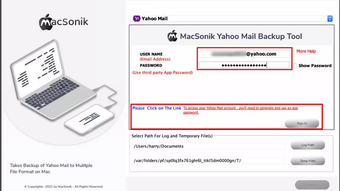
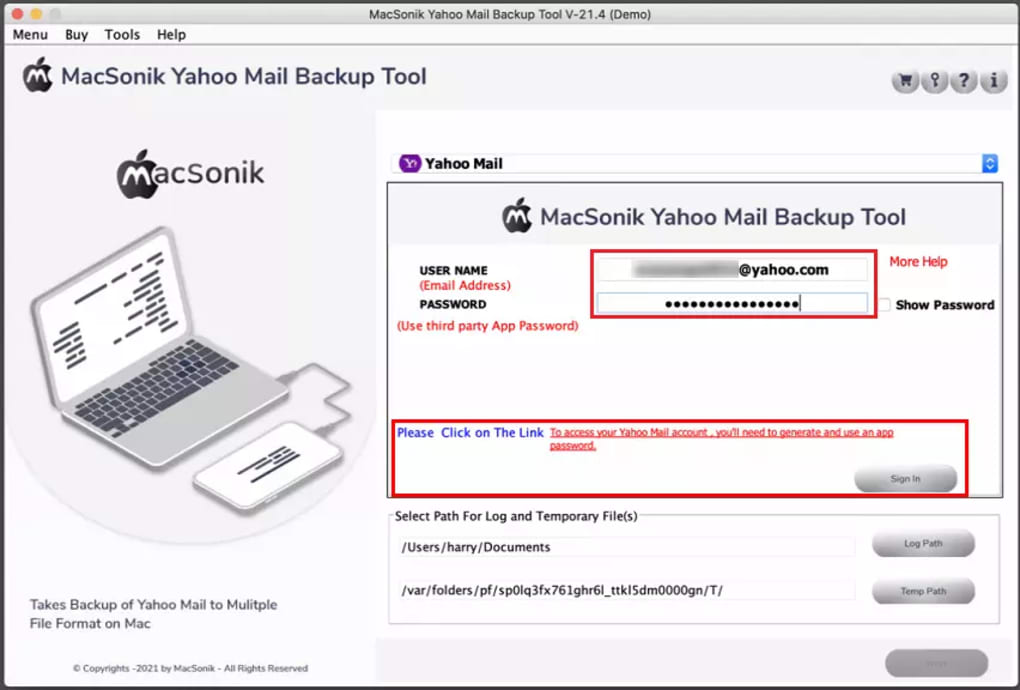
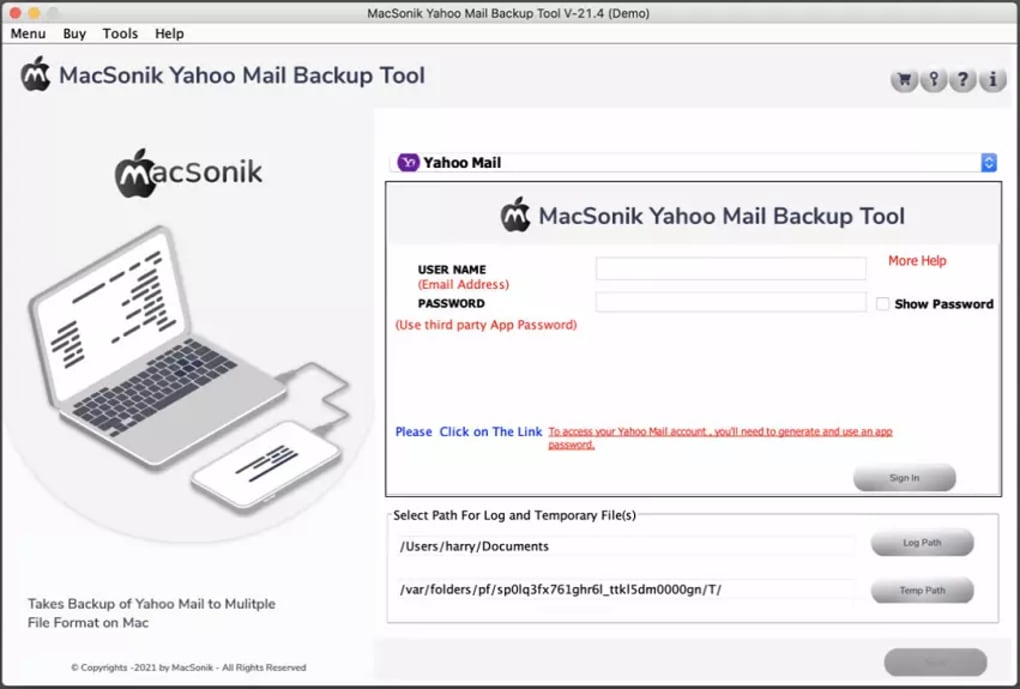
- Enter your Yahoo username (full e‑mail address) and password. For accounts with two‑factor authentication, generate an app‑specific password via Yahoo’s security settings.
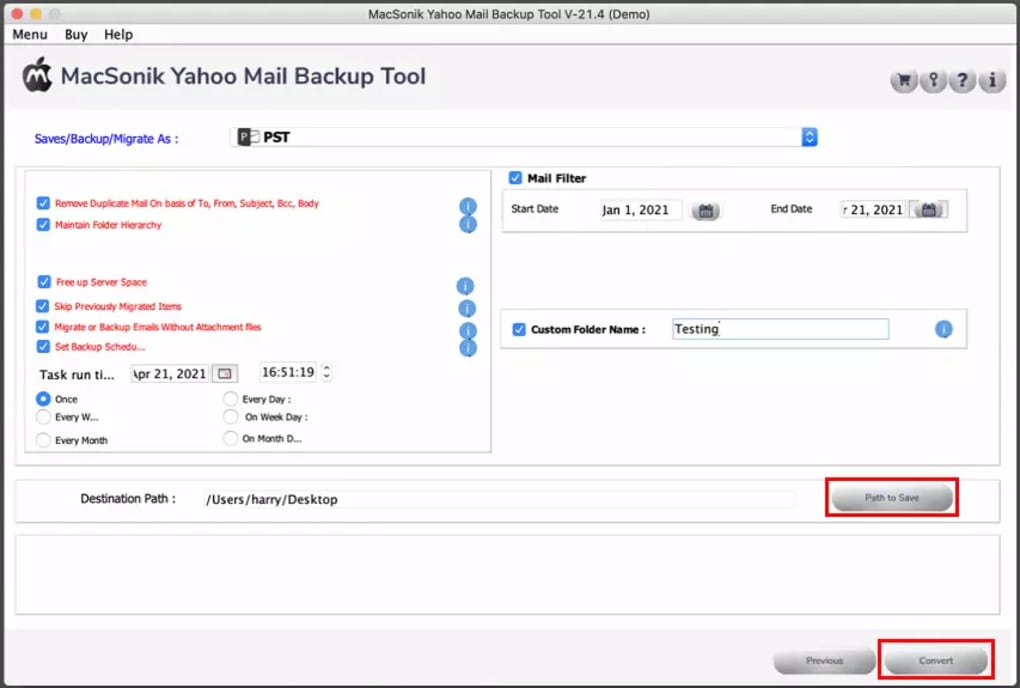
- Choose a local destination folder where backups will be stored. It’s advisable to select an external drive or a cloud‑synced folder for redundancy.
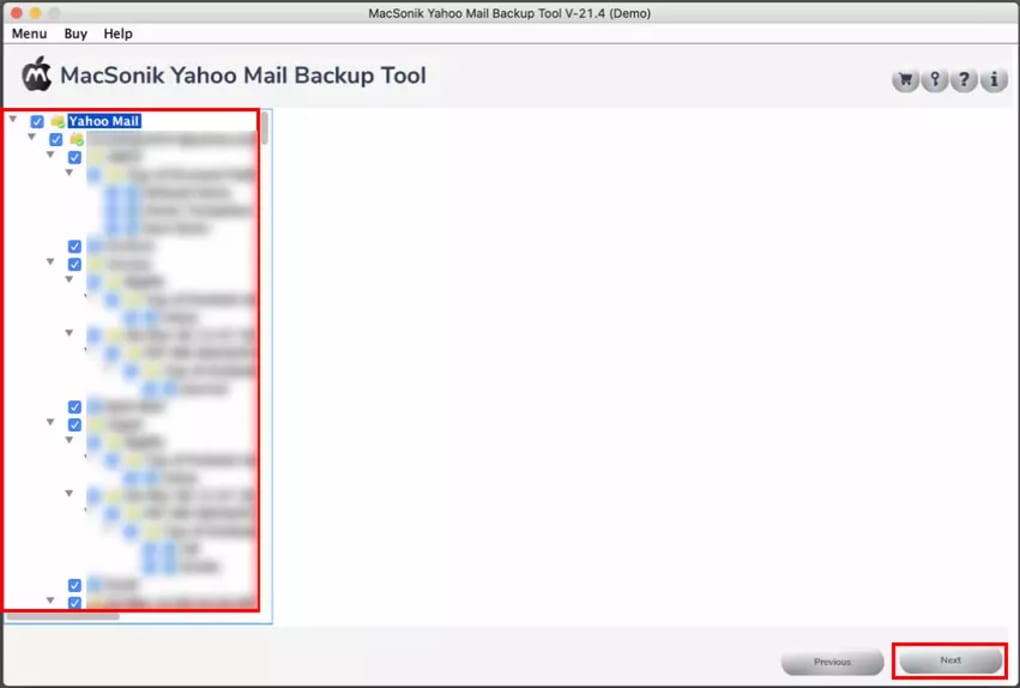
- Click Sign In. The software will validate credentials and retrieve a list of your Yahoo folders.
3. Configure Backup Preferences
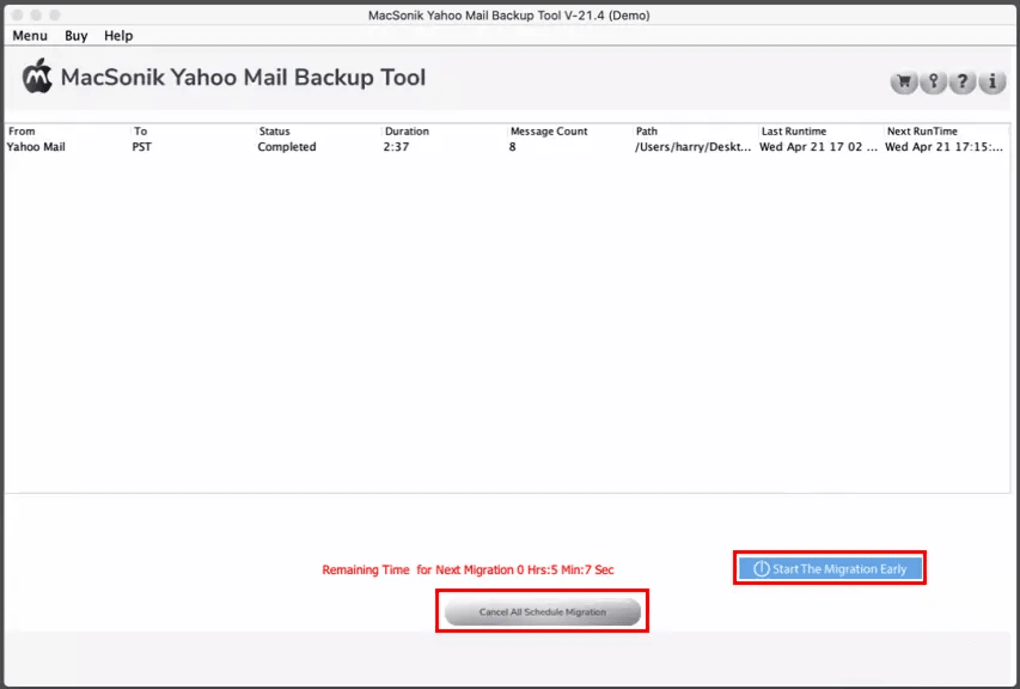
- In the Backup Settings tab, enable Scheduled Backups and set the desired frequency.
- Pick the folders you wish to back up; you can tick All Folders or select a subset for faster runs.
- Activate Duplicate Detection and define a retention policy (e.g., keep backups for 90 days).
4. Running a Manual Backup or Migration
- To start an immediate backup, click the Backup Now button. Progress is shown in real time with an estimated completion time.
- For migration, switch to the Migrate tab, select the target service (Gmail, Office 365, etc.), and provide the required credentials. The tool will map Yahoo folders to the destination and begin the transfer.
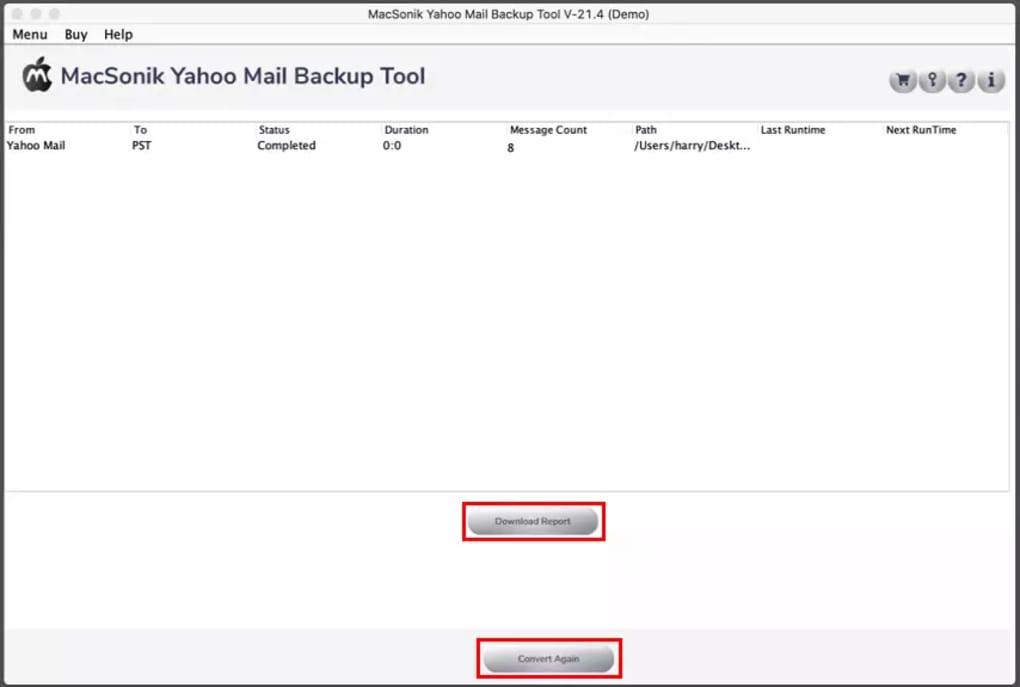
Throughout the process, a log window records each step, making it easy to verify that every message has been captured. After the initial setup, the tool runs silently in the background, waking up only at scheduled times to perform its duties.
Compatible Operating Systems: Windows 10/11 (64‑bit), macOS 10.14‑13 (Catalina to Ventura). A Linux version is slated for a future release.
Pros, Cons & Frequently Asked Questions
Pros
- Reliable scheduled backups reduce the risk of data loss.
- Multiple export formats make migration to other platforms seamless.
- Strong encryption ensures stored backups remain private.
- Simple, wizard‑driven setup suitable for non‑technical users.
- Comprehensive logging aids troubleshooting and compliance audits.
Cons
- Interface looks dated compared with modern cloud‑first tools.
- No built‑in cloud storage; users must manage external backup locations.
- Limited to Yahoo Mail – does not support other email providers in a single instance.
- Linux support is pending, which may limit adoption among developers.
Frequently Asked Questions
Can I back up multiple Yahoo accounts with a single installation?
Yes. After adding the first account, you can click the “Add Account” button to include additional Yahoo Mail accounts. Each account maintains its own schedule and backup destination.
Is the backup file format compatible with Outlook?
Absolutely. The tool can export mailboxes as .pst files, which can be imported directly into Microsoft Outlook without conversion.
How secure are the locally stored backups?
Backups are encrypted using AES‑256 encryption before being written to disk. You can also set an additional password for the backup folder to add a second layer of protection.
What happens after the 14‑day free trial ends?
Once the trial expires, the application enters a read‑only mode. To resume full backup and migration functionality, you’ll need to purchase a license – either a single‑user or a multi‑device package.
Can I schedule backups to run only when my computer is idle?
Yes. In the scheduling options there is an “Idle Mode” checkbox. When enabled, the backup will start only after the system has been idle for a configurable number of minutes, preventing performance impact during active work.
MacSonik Yahoo Mail Backup Tool delivers exactly what its tagline promises – a reliable, secure way to archive Yahoo Mail messages. While the UI could use a visual refresh, the underlying engine is solid, offering flexible export formats and robust encryption. For anyone who treats email as a critical business asset, the tool’s scheduling and duplicate‑filtering capabilities are especially valuable. The occasional hiccup occurs when large mailboxes are migrated to cloud services, but these are usually resolved by adjusting batch sizes. Overall, a four‑star rating reflects its functional strengths balanced against its aesthetic shortcomings.
Conclusion – Should You Download MacSonik Yahoo Mail Backup Tool?
In the landscape of email backup utilities, MacSonik Yahoo Mail Backup Tool stands out for its focus on Yahoo Mail, its encryption‑first approach, and its generous export options. If you are a power user who needs scheduled, hands‑free backups or you’re planning a migration to Gmail, Office 365, or another IMAP service, this software gives you the tools to do it safely and efficiently. The primary drawback – an older‑looking interface – does not affect the core functionality, and the developers have indicated that UI enhancements are on the roadmap. For individuals and small teams looking for a cost‑effective, secure backup solution, the tool’s pricing tiers after the trial are reasonable, especially when compared with enterprise‑grade alternatives. Take advantage of the free trial, test the backup and migration workflow, and decide if the feature set aligns with your workflow. When you’re ready, click the download button below, install, and start protecting your Yahoo Mail today.
Download MacSonik Yahoo Mail Backup Tool now and secure your inbox with a few simple clicks.
Guides & Tutorials for MacSonik Yahoo Mail Backup Tool
How to install MacSonik Yahoo Mail Backup Tool
- Click the Preview / Download button above.
- Once redirected, accept the terms and click Install.
- Wait for the MacSonik Yahoo Mail Backup Tool download to finish on your device.
How to use MacSonik Yahoo Mail Backup Tool
This software is primarily used for its core features described above. Open the app after installation to explore its capabilities.
User Reviews for MacSonik Yahoo Mail Backup Tool 0
No reviews found





.webp)